Skip to content
WebChat AI
HomeFeaturesHow it worksIntegrationsPricingDocs
WebChat AI

Build intelligent AI assistants trained on your website content.

Connect with us

Product

  • Features
  • How it works
  • Integrations
  • Pricing
  • Security

Resources

  • Documentation
  • API reference

Legal

  • Privacy Policy
  • Terms of Service

© 2026 WebChat AI. All rights reserved.

Get Started
OverviewQuickstart
Knowledge sourcesFile uploadsRAG & grounding
EmbedCustomizationConfigurationTesting
ConversationsAnalytics & usage
API referenceSecurityTroubleshooting
Changelog

Ready to launch?

Get Started Free
DocsWidgetTesting

Widget Testing & Staging Verification

Verify your assistant's knowledge, streaming responses, citations, and theme appearance in an isolated staging environment.
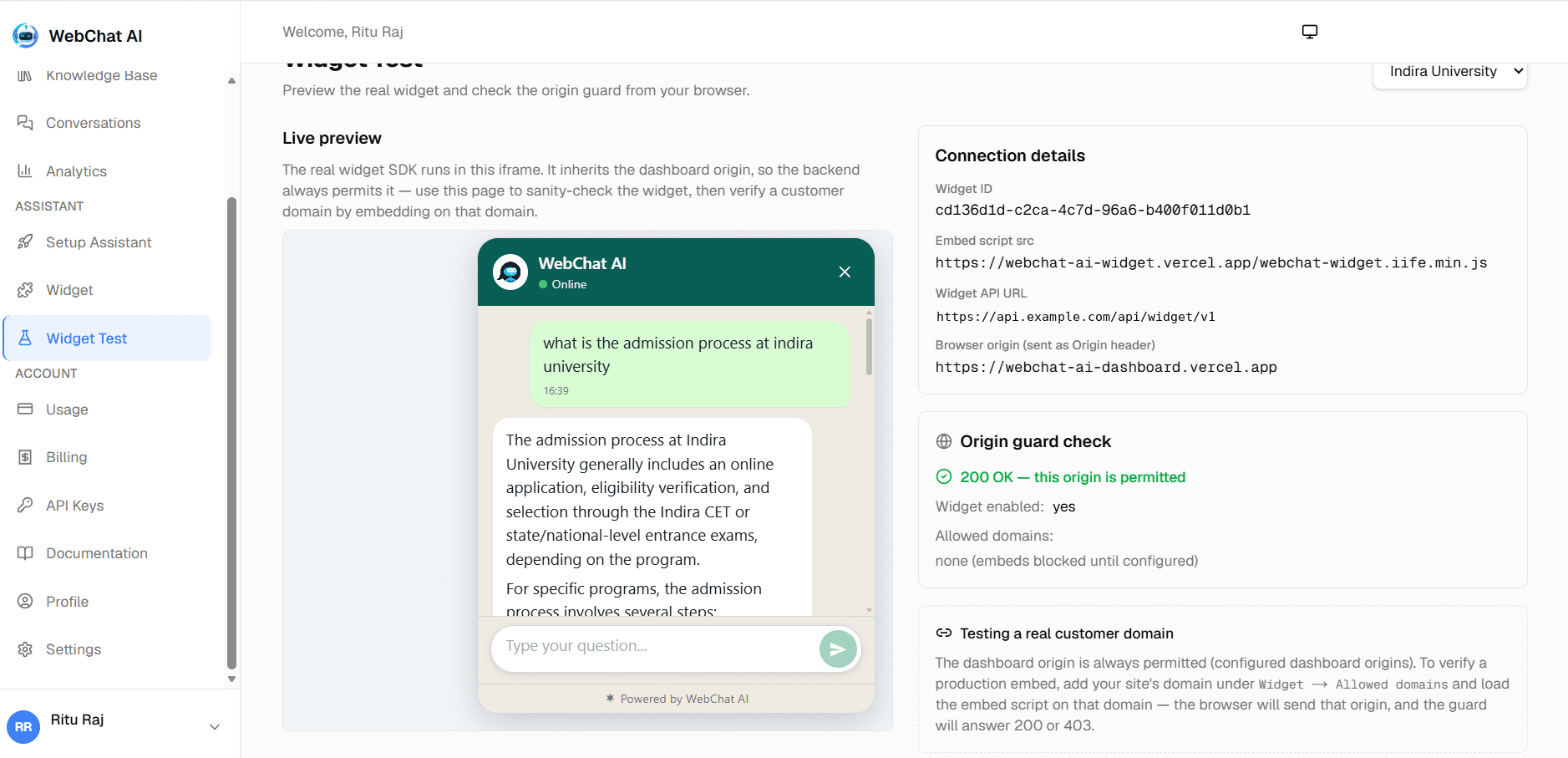
WebChat AI Dashboard Widget Test Page
The Widget Test page runs the real WebChat AI widget SDK in an isolated dashboard test page.

The dashboard Widget Test environment

What it is and how it exercises your real runtime.

Rather than requiring you to embed code on a live website to test changes, WebChat AI includes a dedicated test harness at Widget Test in your dashboard sidebar.

  • Real SDK Runtime: Renders inside an isolated iframe running the exact production webchat-widget.js bundle.
  • Live Configuration: Pulls your latest saved theme, bot name, suggested questions, and branding options in real time.
  • Active RAG Index: Queries your real knowledge base and tests answer grounding and citation linking.

Staging verification checklist

Run through these checks before publishing the widget to visitors.

  • Launcher open/close: Click the launcher button to verify smooth opening, closing, and viewport positioning.
  • Suggested questions: Confirm your configured prompt chips appear and trigger queries on click.
  • Streaming tokens: Check that AI answers stream smoothly without choppy pauses or buffer stutter.
  • Source citations: Click citations beneath answers to verify they link to the correct document or crawled URL.
  • Grounding & fallback: Ask an out-of-scope question and confirm the bot gracefully returns the fallback without fabricating information.
  • Theme & contrast: Verify your text colors, header gradients, and button accents maintain good readability.
  • Mobile responsiveness: Test on mobile viewports to ensure the full-screen chat drawer functions properly.

Testing on localhost or staging servers

How to test in local web development environments.

If you are embedding the widget in a local web development environment (e.g. Next.js, Vite, or WordPress running on localhost), you must add your local development origin to the allowlist:

localhost

Add localhost under Widget → Allowed domains. WebChat AI matches hostnames regardless of the port (e.g. localhost:3000 and localhost:8000 both match).

Remove localhost in production

Before deploying to public production, remember to remove development origins from the allowlist to keep embedding strictly confined to your live domains.

Configuration caching (5-minute TTL)

Understanding server-side cache duration during testing.

Widget public configuration is cached server-side in Redis for up to 300 seconds (5 minutes) with best-effort invalidation upon dashboard updates.

When you update settings in the dashboard, the cache key is purged immediately. If Redis is temporarily unreachable, the service falls back directly to the database, ensuring configuration updates apply reliably.

Related documentation

Customization Reference

Learn how to customize themes, typography, and bot branding.

Read guide

Embed Guide

Deploy the tested widget to your production website.

Read guide

Troubleshooting Guide

Solve origin rejections, CSP directives, and streaming drops.

Read guide

PreviousConfigurationNext Embed

Ready to build?

Register a website and get a live assistant in minutes.

Get Started Free